
What are the Different Types of USB Cables? A Complete Guide
If you have ever stared at a drawer full of cables wondering which one goes where, you are not alone. USB cables are everywhere, connecting your computers, printers, phones, monitors, external drives, and just about everything else in your office. But “USB” is not one thing. There are multiple connector types, multiple speed standards, and multiple generations, and picking the wrong cable means either a bad connection or no connection at all.
As a Chicago managed IT services provider, we help businesses sort through cabling questions every single day. This guide breaks down every type of USB cable you are likely to encounter, what each one is used for, and how to make sure you are using the right cable for the job.
What Is a USB Cable?
USB stands for Universal Serial Bus. A USB cable is a standardized connection cable used to transfer data between devices and deliver electrical power for charging. USB cables connect everything from keyboards, mice, and printers to smartphones, external hard drives, monitors, and docking stations. They were first introduced in 1996 to replace the mess of proprietary connectors that existed before, and the standard has evolved through multiple generations since then, getting faster, more powerful, and more versatile with each version.
Every USB cable has a connector (the plug) on each end. The shape of the connector determines what port it fits into, and the USB version determines how fast data moves and how much power the cable can deliver. Understanding both is the key to picking the right cable.
USB Cable Types by Connector Shape
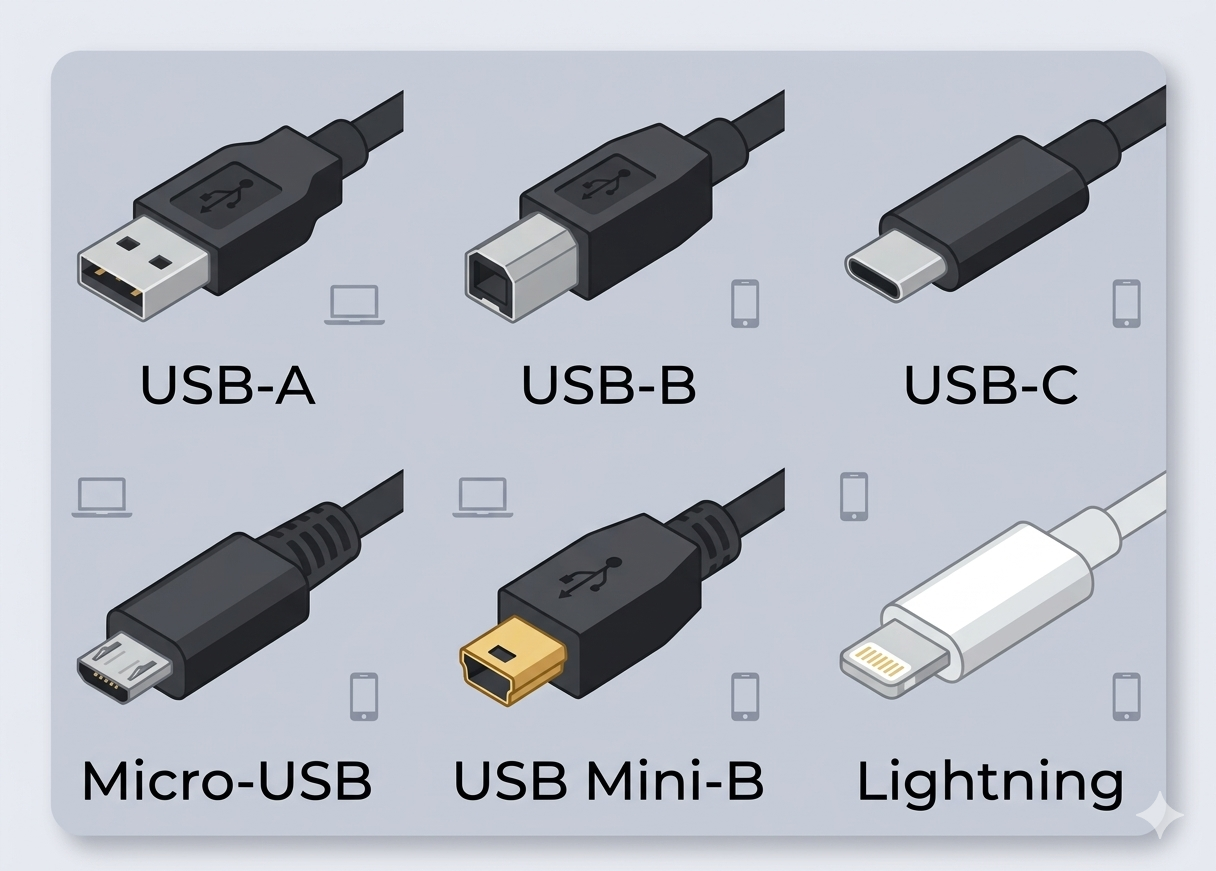
The first thing to understand is that USB “type” refers to the physical shape of the connector, the plug on each end of the cable. The shape determines what port it fits into. USB cables use a male connector (the plug that sticks out) and a female connector (the port or receptacle on the device that accepts the plug). Here are the main types.
USB Type-A (the Standard Rectangular USB)
USB Type-A is the flat, rectangular connector you have been using for decades. If you have ever plugged a flash drive, keyboard, mouse, or phone charger into a computer, you were almost certainly using a Type-A port. It is the most common USB connector in the world, found on virtually every desktop computer, laptop, TV, game console, and wall charger.
Type-A plugs can only be inserted one way, which is why you always seem to get it wrong on the first try. The port on the device (the receptacle) has a thin plastic block inside that determines orientation. If you see a USB port with a blue interior, that indicates USB 3.0 or higher support — older USB 2.0 ports have black or white interiors.
Common uses: Computers, keyboards, mice, flash drives, phone chargers, printers (host end), external hard drives (host end).
USB Type-B (the Square Printer USB)
USB Type-B has a square-shaped connector with slightly beveled top corners. You will most commonly find it on the back of printers, scanners, and some older external hard drives. One end of the cable is always Type-A (which plugs into your computer), and the other end is Type-B (which plugs into the device).
Type-B is less common today because many newer printers use USB-C or connect over Wi-Fi. But if your office still has workgroup printers, copiers, or plotters that use a physical USB connection, chances are it is a Type-B cable.
Common uses: Printers, scanners, some older external hard drives, audio interfaces, and MIDI controllers.
USB Type-C (the Reversible Modern Standard)
USB Type-C is the newest and most versatile USB connector. It has a small, oval-shaped plug that is reversible, you can insert it either way, which eliminates the “flip it and try again” problem entirely.
USB-C is rapidly becoming the universal standard. Most new laptops, tablets, smartphones (including all modern Android devices and newer iPhones), monitors, and docking stations use USB-C. It supports much faster data transfer than older connectors, can deliver significantly more power (enough to charge a laptop), and can even carry video signals to external monitors.
The European Union now requires USB-C as the common charging port for smartphones and small electronics sold in the EU, which has accelerated adoption worldwide.
Common uses: Modern laptops, smartphones, tablets, monitors, docking stations, external SSDs, Nintendo Switch, and increasingly everything else.
Micro-USB
Micro-USB is a small, trapezoidal connector that was the standard charging and data port for Android smartphones, e-readers, Bluetooth speakers, and many other small electronics for roughly a decade (roughly 2007-2018). It is narrower than Mini-USB and has a slight taper on one side.
While Micro-USB has been largely replaced by USB-C on new devices, you will still find it on plenty of existing equipment, budget Bluetooth headphones, older Kindle e-readers, some game controllers, portable battery packs, and lots of IoT devices. If your office has equipment from the 2010-2018 era, you probably still need a few Micro-USB cables in your drawer.
Common uses: Older Android phones, e-readers, Bluetooth speakers and headphones, game controllers, portable battery packs.
Mini-USB
Mini-USB is an older, wider connector that predates Micro-USB. It has a roughly trapezoidal shape but is noticeably wider. You will mostly find it on very old devices, early-2000s digital cameras, older GPS units, some older external hard drives, and early MP3 players.
Mini-USB is essentially obsolete for new products, but it still shows up occasionally on legacy equipment. If you are supporting older hardware in your organization, it is worth keeping a Mini-USB cable around.
Common uses: Older digital cameras, GPS devices, early external hard drives, some older controllers and industrial equipment.
Lightning (Apple’s Proprietary Connector)
Lightning is not technically a USB standard, it is Apple’s proprietary connector, introduced in 2012 as a replacement for the older 30-pin dock connector. You will find Lightning ports on iPhones (through iPhone 14), most iPad models prior to 2022, AirPods cases, and some Apple accessories like the Magic Keyboard and Magic Mouse.
Lightning is small, flat, and reversible (like USB-C), but it is narrower and has exposed pins on the outside of the plug rather than inside a housing. It supports USB 2.0 data transfer speeds (480 Mbps) and charging up to about 20W with a compatible adapter.
The important thing to know: Apple is transitioning away from Lightning to USB-C. iPhone 15 and later models all use USB-C, as do current iPads and MacBooks. The EU’s common charger directive accelerated this shift. If you are buying new Apple devices, you will be using USB-C. But if your office still has a fleet of older iPhones, iPads, or AirPods, you will need Lightning cables for a while yet.
Common uses: iPhone 5 through iPhone 14, older iPads, AirPods cases, Apple accessories (Magic Keyboard, Magic Mouse, Magic Trackpad).
USB Versions: Speed and Power Standards
Separately from the connector shape, USB cables also follow version standards that determine data transfer speed and power delivery. This is the difference between “type” and “version” — the type is the shape of the plug, and the version is the technology inside.
USB 2.0 (High Speed)
USB 2.0 is the older standard still found on many devices. It supports data transfer speeds up to 480 Mbps — fine for keyboards, mice, and basic file transfers, but slow for moving large files or backing up drives. If the inside of your USB-A port is black or white, it is likely USB 2.0.
USB 3.0 / 3.1 Gen 1 / 3.2 Gen 1 (SuperSpeed)
USB 3.0 dramatically increased speed to 5 Gbps — about ten times faster than USB 2.0. This is the standard you want for external hard drives, flash drives with large files, and anything where transfer speed matters. USB 3.0 ports and plugs are typically marked with a blue interior or the “SS” (SuperSpeed) logo.
Note: USB 3.0 was retroactively renamed to USB 3.1 Gen 1, then again to USB 3.2 Gen 1. The technology is the same, only the marketing name changed. If you see any of these three names, they all mean 5 Gbps.
USB 3.1 Gen 2 / 3.2 Gen 2 (SuperSpeed+)
This bumped the speed to 10 Gbps, double USB 3.0. Commonly found on newer external SSDs and USB-C devices. Ports supporting this standard sometimes have a teal or red interior.
USB 3.2 Gen 2×2
This version doubles the lanes to achieve 20 Gbps transfer speeds. It requires a USB-C connector on both ends and is relatively uncommon outside of high-performance storage devices.
USB4
The latest standard, USB4 supports speeds up to 40 Gbps (and USB4 Version 2.0 can reach 80 Gbps). USB4 uses USB-C connectors exclusively and is compatible with Thunderbolt 3. It is showing up on the newest laptops and docking stations but is not yet widespread.
Quick Reference: USB Version Speeds
USB Version | Max Speed | Common Name | Port Color |
|---|---|---|---|
USB 2.0 | 480 Mbps | High Speed | Black/White |
USB 3.0 / 3.2 Gen 1 | 5 Gbps | SuperSpeed | Blue |
USB 3.1 / 3.2 Gen 2 | 10 Gbps | SuperSpeed+ | Teal/Red |
USB 3.2 Gen 2×2 | 20 Gbps | SuperSpeed 20Gbps | — |
USB4 | 40-80 Gbps | USB4 | — |
Backward compatibility: Newer versions are backward compatible with older ones. A USB 3.0 drive will work in a USB 2.0 port, it will just run at the slower USB 2.0 speed. Similarly, a USB 2.0 device will work in a USB 3.0 port with no issues.
USB Power Delivery: Charging and Powering Devices
USB cables are not just for data, they also deliver power. Different USB versions and cable types support different power levels:
USB 2.0: Up to 2.5W (5V at 500mA) — enough to charge a phone slowly or power a mouse.
USB 3.0: Up to 4.5W (5V at 900mA) — slightly more power for faster charging.
USB-C with Power Delivery (PD): Up to 240W (48V at 5A) — enough to charge laptops, power monitors, and run docking stations from a single cable.
This is why USB-C has become the go-to connector for modern devices. A single USB-C cable can simultaneously transfer data at high speed, carry a video signal to an external monitor, and charge your laptop. No other USB connector type can do all three at once.
How to Identify Which USB Cable You Have
Not sure which cable you are looking at? Here is a quick way to identify them:
Flat rectangle (the big, wide one that only inserts one way): USB Type-A, also called the standard USB, the normal USB, or the original USB
Square with beveled top corners: USB Type-B, also called the printer USB
Small oval, inserts either way: USB-C, the newest and most versatile
Small and trapezoidal with a slight taper: Micro-USB
Wider than Micro-USB, roughly trapezoidal: Mini-USB
Small, flat, and reversible with exposed pins: Lightning (Apple only)
Blue interior on a Type-A plug: USB 3.0 or higher
Black interior on a Type-A plug: USB 2.0
How can you tell if your cable is USB-A or USB-C? The simplest test: if the plug is reversible (works either way you insert it), it is USB-C. If it only goes in one direction, it is USB-A. And if you are wondering about USB-C vs Lightning, both are small and reversible, but USB-C has a smooth oval housing while Lightning has a thin flat plug with visible metal pins on both sides.
When in doubt, look at what device you are trying to connect. The port on the device usually has a label or icon next to it indicating the USB version. A small “SS” (SuperSpeed) logo means USB 3.0 or higher. A lightning bolt icon near a USB-C port usually indicates Thunderbolt support.
Which USB Cable Do You Actually Need?
Here is a practical guide for common office scenarios:
Connecting a printer: USB Type-A to Type-B cable. If it is an older workgroup printer, this is almost certainly what you need. Newer printers may use USB-C or connect over your network via Wi-Fi, Ethernet, or other forms of network cables.
Charging a modern smartphone: USB-C cable (or USB-A to USB-C if your charger only has a USB-A port). All current Android phones and iPhones 15 and later use USB-C. If your office still has iPhones 14 or older, those use Lightning cables.
Connecting an external hard drive or SSD: USB-A to USB-C, or USB-C to USB-C. Make sure the cable supports at least USB 3.0 (5 Gbps), a USB 2.0 cable will work but your transfers will be painfully slow.
Setting up a monitor or docking station: USB-C to USB-C with power delivery support. Not all USB-C cables support video output, so check the cable specifications or look for cables explicitly labeled as supporting “alt mode” or “DisplayPort alt mode.”
Connecting older devices (cameras, GPS, older controllers): Check whether the device uses Micro-USB or Mini-USB. Both will have a USB-A connector on the computer end.
Charging Apple accessories: AirPods (1st and 2nd gen cases), Magic Keyboard, Magic Mouse, and Magic Trackpad still use Lightning. Newer versions of these accessories are transitioning to USB-C.
For all your structured cabling and hardware setup needs, LeadingIT is here to help your Chicagoland business get connected the right way.
Frequently Asked Questions
What are the 4 main types of USB connectors? The four main types are USB Type-A (rectangular), USB Type-B (square), USB Type-C (small oval, reversible), and Micro-USB (small, trapezoidal). Mini-USB is a fifth type but is mostly obsolete on new devices.
What is the standard USB port called? The standard rectangular USB port is called USB Type-A, or USB-A. It is the most common USB connector found on computers, chargers, and hubs.
How many types of USB cables are there? There are five main USB connector types: USB-A, USB-B, USB-C, Micro-USB, and Mini-USB. Apple’s Lightning connector is a sixth common cable type, though it is proprietary and not part of the USB standard. Each USB type can support different versions (2.0, 3.0, 3.1, 3.2, USB4) which determine speed and power capabilities.
What is the difference between USB-A and USB-C? USB-A is the traditional flat rectangular connector that can only be inserted one way. USB-C is newer, smaller, oval-shaped, and reversible. USB-C supports faster data transfer, higher power delivery, and can carry video signals. Most new devices are moving to USB-C.
What is the difference between USB-C and Lightning? Both are small and reversible, but they are not interchangeable. USB-C is an open industry standard used across all brands, while Lightning is Apple’s proprietary connector. USB-C supports faster data speeds and higher power delivery than Lightning. Apple has been transitioning from Lightning to USB-C starting with iPhone 15, and all new Apple devices now use USB-C.
Can I use a USB 2.0 cable in a USB 3.0 port? Yes. USB is backward compatible. A USB 2.0 cable or device will work in a USB 3.0 port, but it will operate at USB 2.0 speeds. Similarly, a USB 3.0 device plugged into a USB 2.0 port will work but at the slower speed.
What is USB Power Delivery? USB Power Delivery (USB PD) is a charging standard that allows USB-C cables to deliver up to 240 watts of power. This is enough to charge laptops, power monitors, and run docking stations from a single USB-C connection, something older USB standards cannot do.
Does the USB cable I use affect charging speed? Yes. A USB 2.0 cable delivers less power than a USB-C cable with Power Delivery support. Using an older or lower-quality cable can result in significantly slower charging. For the fastest charging, use the cable and charger that came with your device or a USB-C cable rated for the power delivery level your device supports.
Get the Right Cables and Connections for Your Business
Having the right cables might seem like a small detail, but in a business with dozens of workstations, printers, and devices, using the wrong cable means slow transfers, failed connections, and frustrated employees. Whether you need help with structured cabling, hardware as a service, or just want a reliable IT partner who picks up the phone when something is not working, LeadingIT has you covered.
LeadingIT is Chicagoland’s trusted advisor for organizations with 25–250 users, specializing in managed IT services and cybersecurity solutions that align with your business goals. Our unlimited support model means your team always has the help they need, when they need it, with no hidden costs. Call us at 815-788-6041 or book a free assessment today.


